You can update your business hours in Appointy whenever your regular working schedule changes.
You can also apply the same schedule to multiple services or staff members, which makes it easier to maintain consistent availability across your team.
How to update business hours in Appointy
Quick navigation
Settings → Business Hours → Edit schedule → Update working hours → Apply to services/staff if needed → Update
Steps to edit your business hours
- Log in to your Appointy admin account.
- Click Settings.
- Open Business Hours from the panel on the left.
- In the Business Hours window, hover over the schedule you want to change.
- Click the pencil/edit icon.
- In the Update Schedule window, edit the working hours for the required days.
- If you want to apply the same schedule to additional services, click the service name shown in the Update Schedule window.Select the services that should use the same business hours.Click Done.
- Select the services that should use the same business hours.
- Click Done.
- If you want to apply the same schedule to additional staff members, click + Repeat for other staff.
- Select the staff members who should receive the same schedule.
- Click Done.
- Click Update in the Update Schedule window to save your changes.
Can I apply the same business hours to multiple services?
Yes.
While editing a schedule, click the service name in the Update Schedule window and select the additional services that should use the same working hours.
This helps avoid editing each service schedule individually.
Can I apply the same business hours to multiple staff members?
Yes.
Use + Repeat for other staff in the Update Schedule window to apply the same schedule to other staff members.
You can select only the staff members you want to update before saving the changes.
How to Update Business Hours for a Newly Added Staff Member
If you add a new staff member, you can copy an existing staff member's business hours instead of creating the schedule again from scratch.
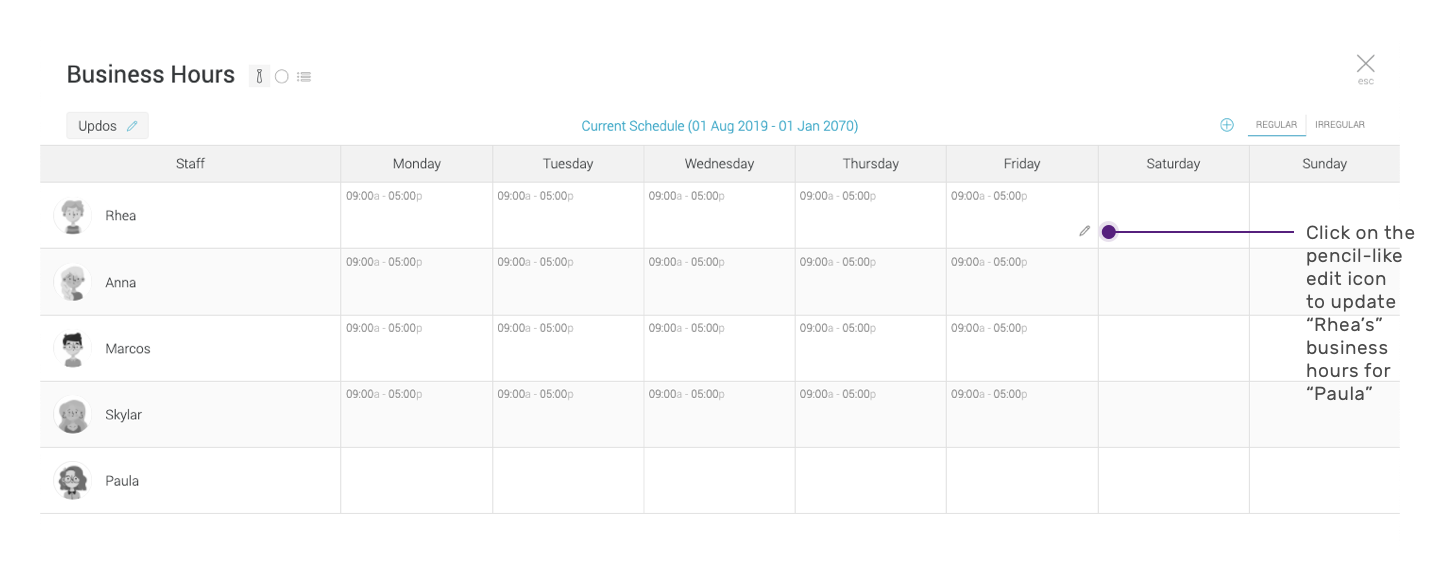
For example, if a new staff member named Paula should follow the same schedule as an existing staff member named Rhea, you can use Rhea's schedule as the starting point and apply it to Paula.
How to copy existing business hours to a new staff member
- Log in to your Appointy admin account.
- Go to Settings → Business Hours.
- Find the existing staff member whose schedule you want to copy.
- Hover over one of that staff member's schedule blocks and click the pencil/edit icon.
For example, if you want Paula to use Rhea's schedule, edit one of Rhea's existing schedule blocks.
- In the Update Schedule window, click the service name shown at the bottom.
- In the Select Service window, choose the services for which the schedule should be applied.
- Click Done.
- Click + Repeat for other staff.
- Deselect the original staff member if you do not want to modify their schedule.
- Select the newly added staff member.
- Click Done.
-
Does copying business hours change the original staff member's schedule?Not if you deselect the original staff member before applying the schedule.
For example, when copying Rhea's hours to Paula, deselect Rhea under + Repeat for other staff and select Paula. This applies the schedule to Paula without changing Rhea's existing availability.
What should I check after updating business hours?After saving your changes, verify that:
- The correct working days are selected
- Start and end times are correct
- The schedule is applied to the correct services
- The correct staff members are selected
-
The expected appointment slots appear on the client booking interface
This is especially important when applying one schedule to multiple services or staff members.
Frequently Asked Questions
Where can I change business hours in Appointy?
Go to Settings → Business Hours, hover over the schedule you want to change, and click the pencil/edit icon.
Can different services have different business hours?
Yes. When editing a schedule, you can choose which services the working hours apply to.
Can different staff members have different working hours?
Yes. Staff schedules can be configured individually based on their availability.
Can I copy one staff member's schedule to another staff member?
Yes. Edit the existing staff member's schedule and use + Repeat for other staff to apply it to the new staff member.
Can I update several staff schedules at the same time?
Yes. You can select multiple staff members under + Repeat for other staff and apply the same schedule to them.
Why are the expected booking slots not showing after I changed business hours?
Check that the correct services and staff members were selected when updating the schedule. Booking availability can also depend on staff availability, service assignment, existing appointments, and other blocked time.