If you no longer want a location connected to your parent Appointy account, you can unlink it from the Locations section.
This option is available for multi-location setups on the Enterprise Plan.
What does unlinking a location mean in Appointy?
Unlinking a location removes the connection between that location and the parent Appointy account.
The original article only confirms the unlink action itself. It does not explain whether unlinking deletes the child location account, removes its data, affects appointments, or can be reversed. Those behaviors should be verified before we state them.
How to unlink a location
Quick navigation
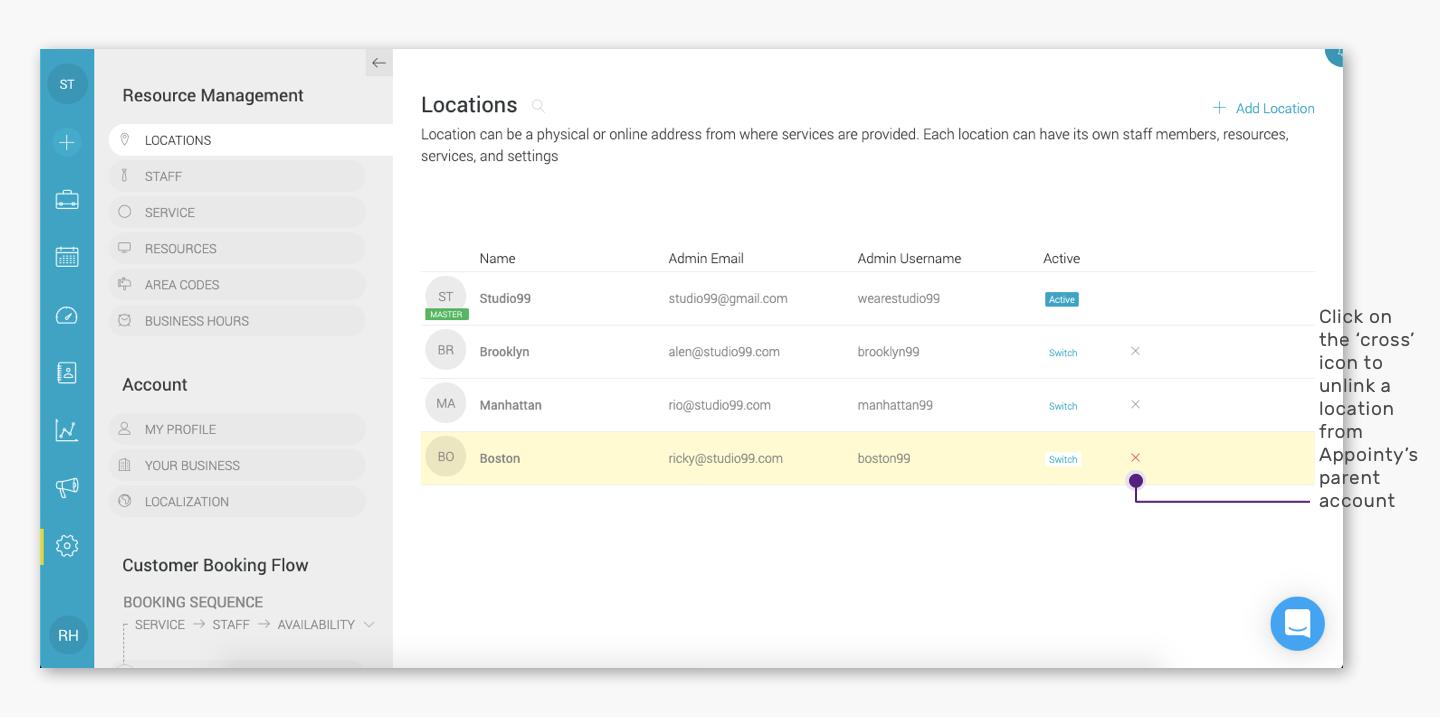
Settings → Locations → Click the X icon next to the location
Steps to unlink a location
- Log in to your Appointy admin account.
- Click Settings in the toolbar on the left.
- Under Resource Management, click Locations.
- A list of your linked locations will appear.
- Find the location you want to unlink.
- Click the X / cross icon shown next to that location.
.
When should I unlink a location?
You may want to unlink a location when:
- A branch is no longer managed under the parent account
- A location should no longer be part of the multi-location setup
- You are reorganizing how locations are managed
Because unlinking may affect how the location is connected to the parent account, review the location carefully before proceeding.
Frequently Asked Questions
How do I unlink a location in Appointy?
Go to Settings → Locations and click the X / cross icon next to the location you want to unlink.
Is unlinking the same as deleting a location?
The current article does not confirm that. We should verify the exact product behavior before saying whether the location or its data is deleted.
Does unlinking remove the location's appointments or staff?
The current source does not specify this. This should be confirmed before publication.
Can I reconnect an unlinked location?
The current article does not explain whether an unlinked location can be linked again. This should also be verified.