You can add an image to a service in Appointy so customers can visually identify the service on the booking interface.
A relevant service image can make the booking experience clearer, especially when your business offers multiple services that may be easier to recognize visually.
How to add a service image
Quick navigation
Settings → Service → Select Service → Image Icon → Choose File or Drag and Drop → Upload
Steps
- Log in to your Appointy admin account.
- Click Settings in the toolbar on the left.
- Under Resource Management, open Service.
- Select the service to which you want to add an image.
- Click the image icon next to the service name.
-
In the Manage Images window, click Choose File to select an image from your device.
You can also drag and drop the image into the Manage Images window when supported.
-
Adjust or resize the image as required before uploading.
. - Click on ‘Upload’ to add an image for the service.
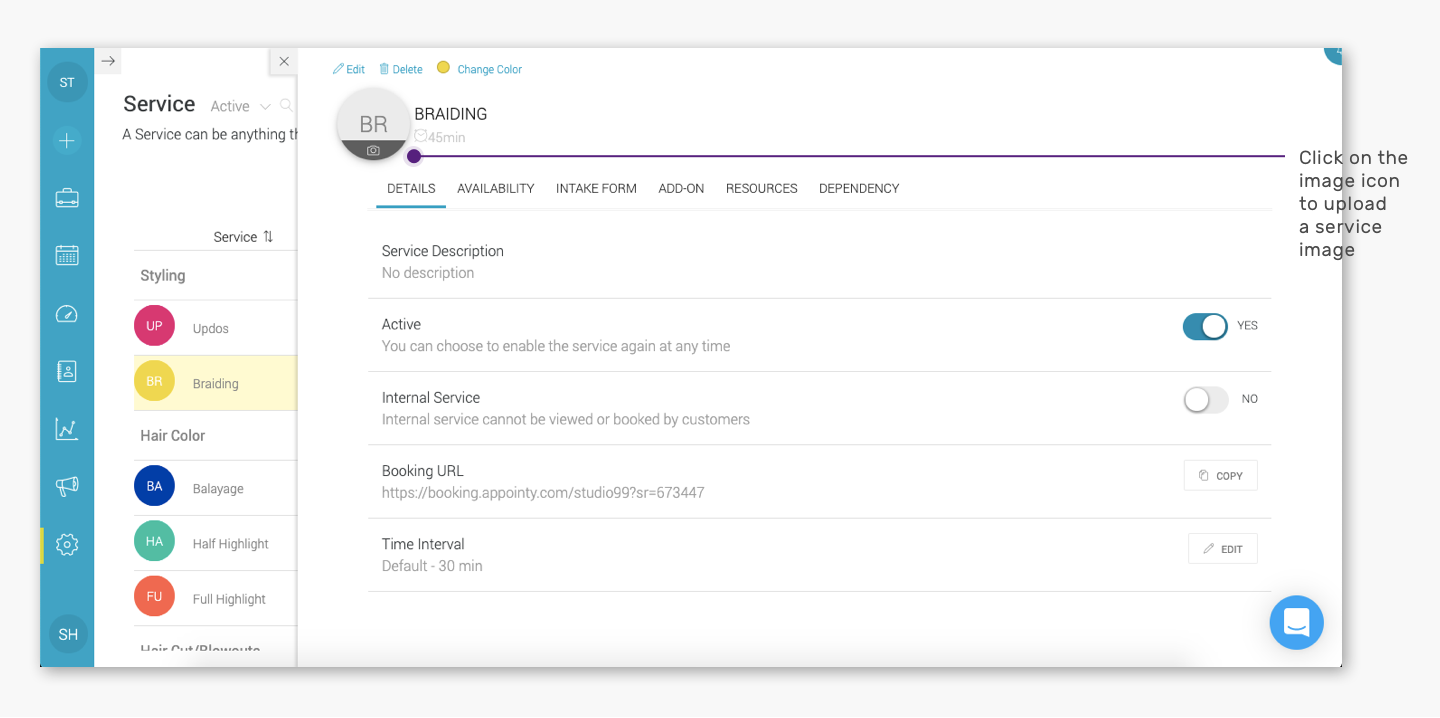
Note: The size of the image should be less than 2 MB. Supported image formats include jpeg, png and gif
Where is the service image displayed?
The service image can appear with the service on the customer booking interface, helping customers identify the service they want to book.
The existing Appointy article also notes that the formatted service image can appear along with reviews shared on social media.
Example: Helping customers distinguish similar services
Suppose a spa offers:
- Swedish Massage
- Deep Tissue Massage
- Hot Stone Massage
Adding a different image to each service can help customers visually distinguish the options while browsing the booking interface.
The same can be useful for:
- Different salon treatments
- Fitness classes
- Photography sessions
- Kids' activities
- Equipment-based services
- Training programs
Image requirements
The current article specifies:
- Maximum image size: less than 2 MB
- Supported formats:
- JPEG
- PNG
- GIF
The old Quick Nav mentions a 512 KB limit, while the note at the bottom states 2 MB. Since those conflict, the published article should use the current verified product limit. Based on the article text provided here, 2 MB is the more recent stated limit.
Frequently Asked Questions
How do I add an image to a service in Appointy?
Go to Settings → Service, select the service, click the image icon next to the service name, choose or drag and drop an image, and click Upload.
What image formats are supported?
The article specifies JPEG, PNG, and GIF.
What is the maximum service image size?
The article specifies that the image should be less than 2 MB.
Can I adjust the image before uploading it?
Yes. The Manage Images window allows you to adjust the image before uploading it.
Will customers see the service image?
Yes. The service image can appear with the service on the customer booking interface.