Appointy lets you block specific dates or time periods from a staff member’s availability so customers cannot book during those periods.
This is useful for leave, personal time, meetings, training, holidays, or any other period when a staff member should not receive bookings.
You can block time in two ways:
- Directly from the Calendar
- From the staff member’s Block Time settings
When should I block time?
Blocking time is useful when a staff member is temporarily unavailable but should otherwise remain active.
Common use cases include:
- Full-day leave
- Half-day leave
- Doctor appointments
- Team meetings
- Training sessions
- Lunch or personal breaks
- Holidays
- Administrative work
- Temporary unavailability on a specific date
If a staff member will be unavailable for a long period, suspending the staff member may be more appropriate.
Option 1: Block dates from the Calendar
Quick navigation
Calendar → Week or Staff View → Block Icon → Select Date/Time
Steps
- Log in to your Appointy admin account.
- Click the Calendar icon in the left toolbar.
- Open either Week View or Staff View.
- Click the block icon in the top row.
- Select the date or time you want to block.
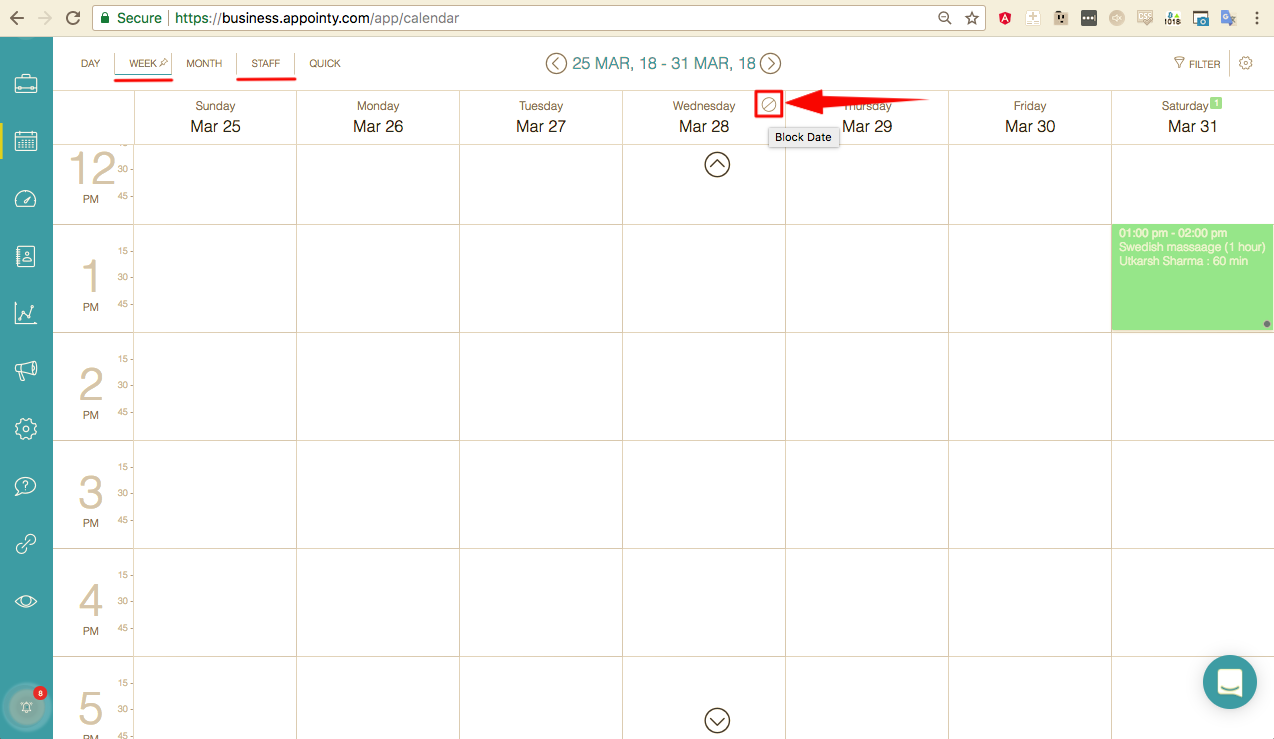
Important: Week View vs Staff View
If you have multiple staff members:
- Blocking a date from Week View blocks that date for all staff members
- To block time for only one staff member, use Staff View or the staff member’s Block Time settings
This distinction is important when only one person is unavailable.
Option 2: Block dates or specific hours from Staff settings
Quick navigation
Settings → Staff → Select Staff Member → Block Time → Block More
Steps
- Log in to your Appointy admin account.
- Click Settings.
- Open the Staff section.
- Select the staff member whose availability you want to block.
- Open the Block Time tab.
- Click Block More.

Block an entire date
Use the Block Date option when the staff member should be unavailable for the whole day.
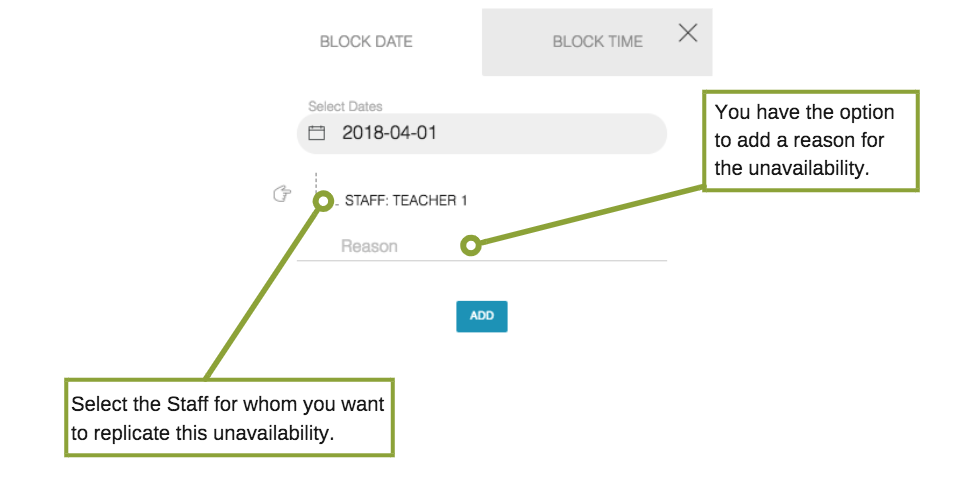
- Select the date or dates you want to block.
- Click Add.
Example: Staff member on leave
Suppose a therapist is on leave on November 12.
Instead of changing their normal weekly schedule, block November 12.
The staff member remains available according to their regular schedule on other dates, but customers will not be able to book them on the blocked date.
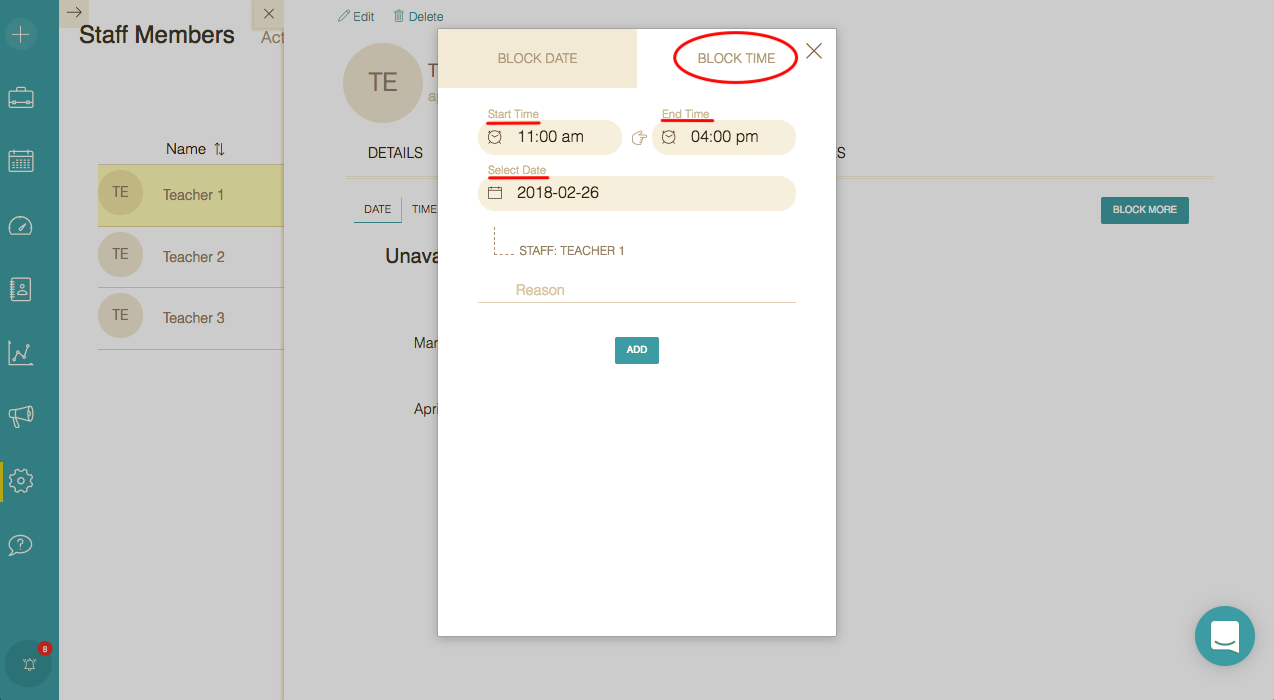
Block only certain hours
Use the Block Time option when the staff member is available for only part of the day.
- Open the Block Time tab.
- Select the date.
- Enter the start time and end time you want to block.
- Click Add.
Additional Settings to consider:
Example: Staff meeting during working hours
Suppose a staff member normally works from 9:00 AM to 6:00 PM, but has a meeting from 2:00 PM to 3:30 PM on a particular day.
Instead of changing their business hours, block:
2:00 PM – 3:30 PM
The staff member can still receive bookings before and after that period.
Block Time vs Business Hours
These settings serve different purposes.
| Business Hours | Block Time |
|---|---|
| Defines the staff member’s regular working schedule | Creates temporary exceptions |
| Usually recurring | Usually date-specific |
| Example: Mon–Fri, 9 AM–6 PM | Example: Nov 12, 2 PM–4 PM |
| Best for normal availability | Best for leave, meetings, or temporary unavailability |
Block Time vs Suspending a Staff Member
Use Block Time when the staff member is temporarily unavailable for specific dates or hours.
Use Suspend Staff when the staff member should be removed from active booking for an extended period.
For example:
- One afternoon meeting → Block Time
- Three-day leave → Block Dates
- Several months away → Suspend Staff
Frequently Asked Questions
How do I block a full day for one staff member?
Use Staff View in the Calendar or go to Settings → Staff → Block Time and block the required date.
What happens if I block a date from Week View?
If you have multiple staff members, blocking a date from Week View blocks that date for all staff members.
Can I block only a few hours instead of the whole day?
Yes. Use Block Time and enter the required start and end time.
Will customers be able to book during blocked time?
No. The blocked period is removed from that staff member’s booking availability.
Should I change Business Hours for a one-time absence?
Usually, no. Business Hours are better for regular schedules. Use Block Time for temporary exceptions.
Should I suspend a staff member for a short absence?
Usually, no. For a short absence, blocking the relevant dates or hours is more appropriate.