You can remove an add-on from one or more services without deleting the add-on completely.
There are two ways to do this:
- From the Add-on settings
- From the Service settings
Use either method depending on where you are already working in Appointy.
Option 1: Remove the add-on from Add-on settings
Quick navigation
Settings → Add-on → Edit Add-on → Deselect Service → Update → Save Changes
Step 1: Open Add-on settings
- Log in to your Appointy admin account.
- Go to Settings.
- Under Customization, open Add-on.
Step 2: Edit the add-on
Locate the add-on you want to remove from a service.
Hover over the add-on and click the pencil/edit icon.
.
.
Step 3: Deselect the service
The Update Add-on panel will open.
Deselect the service or services from which you want to remove the add-on.
.
.
Step 4: Save the changes
Click Update, then click Save Changes.
The add-on will no longer be available for the deselected service.
.
Option 2: Remove the add-on from Service settings
Quick navigation
Settings → Service → Select Service → Add-on → Edit Add-on → Deselect Service → Update → Save Changes
Step 1: Open the service
- Log in to your Appointy admin account.
- Go to Settings.
- Under Resource Management, open Service.
- Select the service you want to update.
Step 2: Open the Add-on section
Open the Add-on tab for the selected service.
Locate the add-on you want to remove and click the pencil/edit icon.
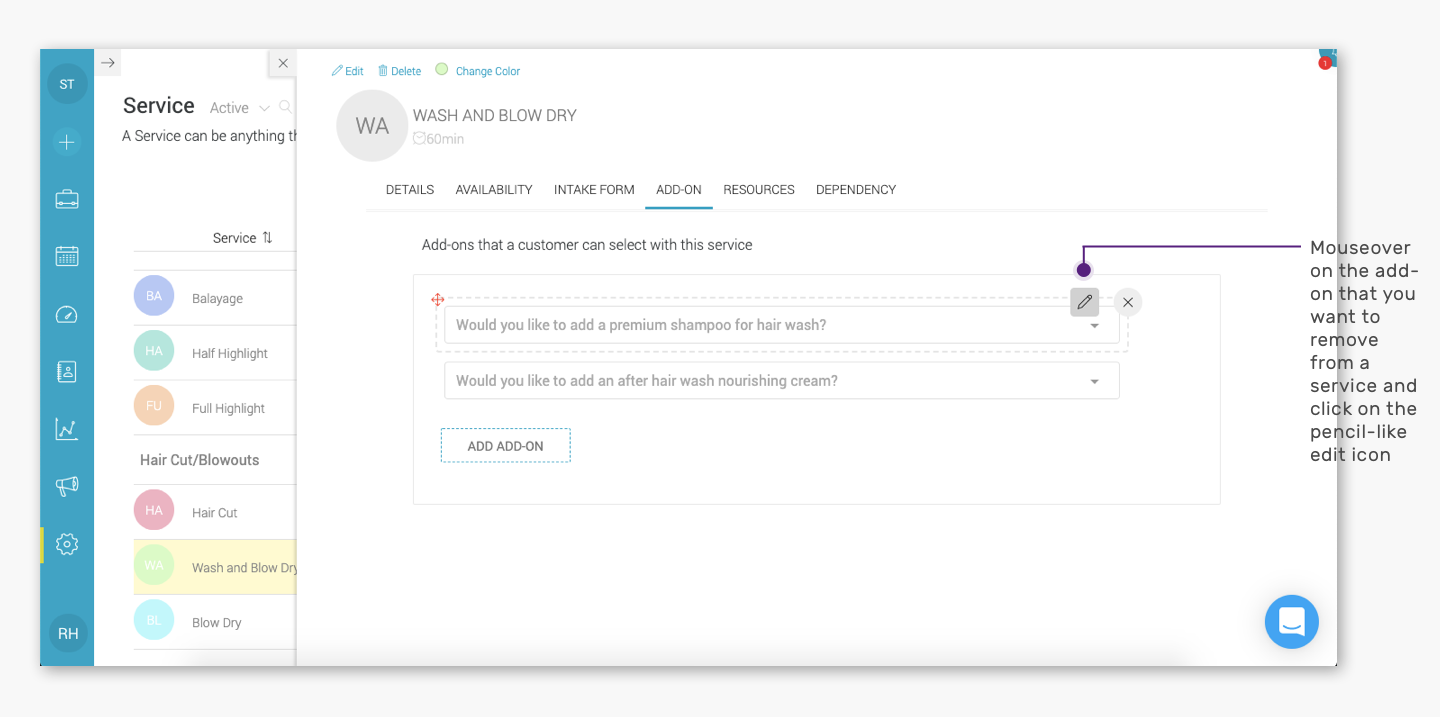
.
Step 3: Deselect the service
In the Update Add-on panel, deselect the service from the add-on assignment.
.
.
.
Step 4: Save the changes
Click Update, then click Save Changes.
The add-on will no longer be offered with that service.
Removing an add-on vs deleting an add-on
These are different actions.
Remove an add-on from a service
This only removes the relationship between that add-on and the selected service.
The add-on can still remain assigned to other services.
Delete an add-on
Deleting the add-on removes it from your add-on setup entirely.
If the add-on is still used by other services, remove it only from the relevant service instead of deleting it.
Example
Suppose you have an add-on called:
Extra Towel — $5
and it is assigned to:
- Swedish Massage
- Deep Tissue Massage
- Sports Massage
If you only want to remove it from Sports Massage, deselect Sports Massage from the add-on assignment.
The add-on will still remain available for Swedish Massage and Deep Tissue Massage.
Important: Add-ons do not increase service duration
Removing or assigning an add-on does not affect the base service duration.
Add-ons can change the booking value or options presented to the customer, but they do not add extra time to the service duration.
Frequently Asked Questions
Can I remove an add-on from only one service?
Yes. Edit the add-on and deselect only that service.
Will the add-on remain available for other services?
Yes, as long as those services remain assigned to the add-on.
Should I delete the add-on if I only want to remove it from one service?
No. Deselect the relevant service instead.
Can I assign the add-on to the service again later?
Yes. Edit the add-on and reselect the service.
Does removing an add-on change the service duration?
No. Add-ons do not increase the service duration.
Can I remove the same add-on from multiple services at once?
Yes. Deselect all the relevant services in the Update Add-on panel before saving.