If you need help with account setup, product configuration, booking workflows, billing questions, or a technical issue, you can contact the Appointy Support team through Live Chat from your admin account.
You can also use support options to schedule a call or screen-sharing session when more detailed assistance is required.
How to start a live chat
Step 1: Log in to Appointy
Log in to your Appointy admin account.
Step 2: Open the chat widget
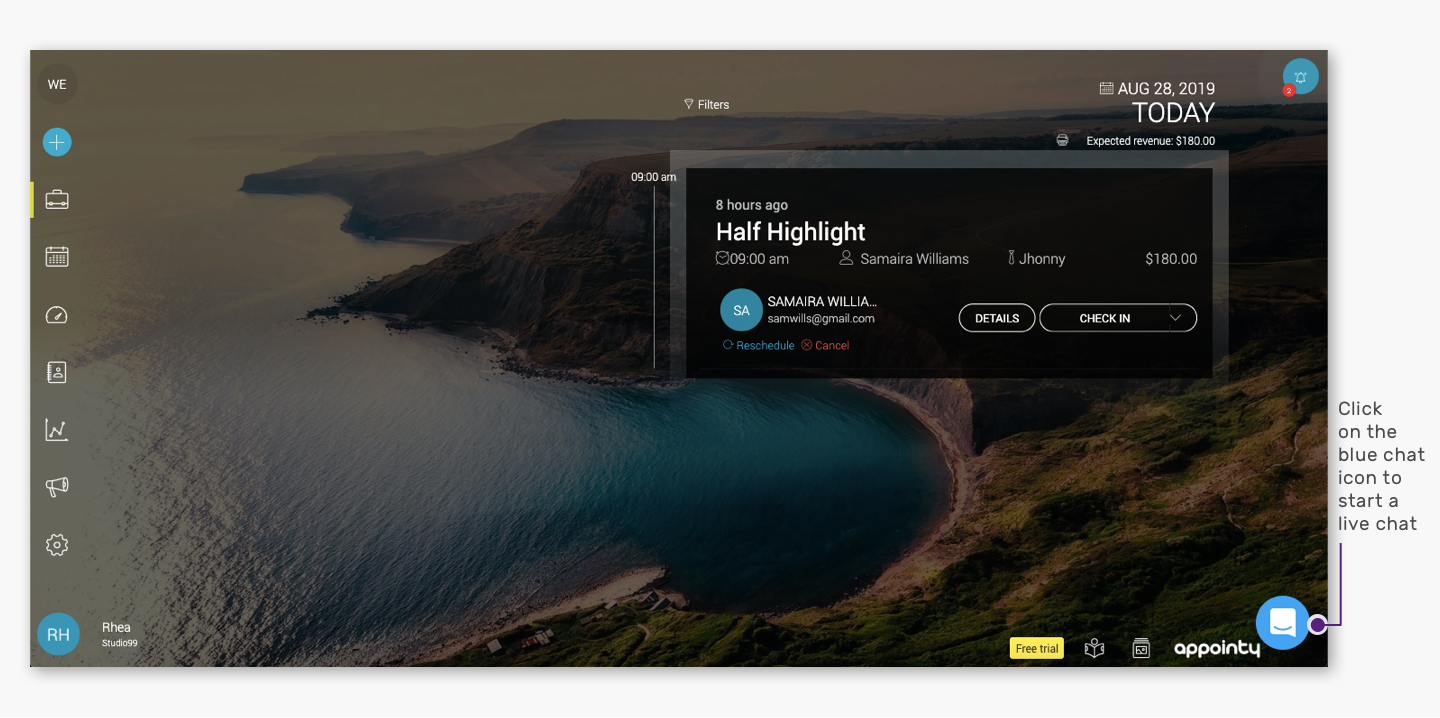
Look for the blue chat icon in the bottom-right corner of the screen.
The chat icon remains available throughout the Appointy application, so you can open it from different pages while working in your account.
.
.
Step 3: Start a new conversation
Click the chat icon to open the support widget.
Then click:
New Conversation
to start a chat with the Appointy Support team.
.
What can you contact Support about?
You can use Live Chat for help with areas such as:
- Account setup
- Services and staff configuration
- Availability and booking settings
- Calendar synchronization
- Payments and billing
- Customer booking issues
- Reports
- Account configuration
- Troubleshooting unexpected behavior
Providing complete information at the beginning of the conversation can help the team understand the issue faster.
What information should I share for a technical issue?
When contacting Support about an issue, include as much relevant information as possible, such as:
- What you were trying to do
- What happened instead
- The page or feature where the issue occurred
- Any error message displayed
- Relevant screenshots
- A short screen recording, if the issue is easier to demonstrate visually
- The affected appointment, service, staff member, or customer details where relevant
Avoid sharing passwords, card details, or other sensitive credentials in the chat.
Book a call or screen-sharing session
If the issue requires a more detailed discussion or guided assistance, you can also schedule a call or screen-sharing session with the Appointy team.
This can be useful for:
- Initial setup
- Complex workflows
- Account configuration
- Product demonstrations
- Troubleshooting that is easier to review on screen
How to close the Live Chat window
To minimize or close the chat interface, use the close/minimize control available on the chat widget.
You can reopen the chat from the blue chat icon when required.
Frequently Asked Questions
Where can I find Live Chat in Appointy?
After logging in to your admin account, look for the blue chat icon in the bottom-right corner of the screen.
Can I access Live Chat from any page?
Yes. The chat widget is available throughout the Appointy application.
How do I start a new support conversation?
Open the chat widget and click New Conversation.
Can Support help me with account setup?
Yes. You can contact Support for help with setup, configuration, and product-related questions.
Can I send screenshots through Live Chat?
Yes. Screenshots can be useful when explaining a technical or configuration issue.
Should I share my password with Support?
No. Never share your password or payment-card credentials through Live Chat.
Can I schedule a call instead of using Live Chat?
Yes. If you need more detailed assistance, you can schedule a call or screen-sharing session.