With Square POS, you can accept debit or credit card payments at your business location and record those payments against appointments in Appointy.
Before using Square POS with Appointy, make sure your Appointy account is connected to Square.
Before you begin
You will need to:
- Connect Square with your Appointy account
- Install the Appointy mobile app
- Log in to the Appointy mobile app using your admin account
- Connect your mobile device with Square POS
Once this setup is complete, payment requests initiated from Appointy can be handled through the Appointy mobile app and Square POS.
Quick navigation
Calendar → Select Appointment → Add Payment → Enter Payment Details → Pay with Square → Accept Payment Request in Appointy Mobile App
How to accept a payment using Square POS
Step 1: Open the Calendar
- Log in to your Appointy admin account.
- Open Calendar from the left-side navigation.
Step 2: Select the appointment
Click the appointment for which you want to collect and record the payment.
The appointment details panel will open.
Step 3: Click Add Payment
In the appointment details panel, click Add Payment.
Step 4: Enter the payment details
Enter the required payment information, such as:
- Payment amount
- Discount, if applicable
- Additional charges, if applicable
Then click Pay with Square.
Step 5: Accept the payment request in the Appointy mobile app
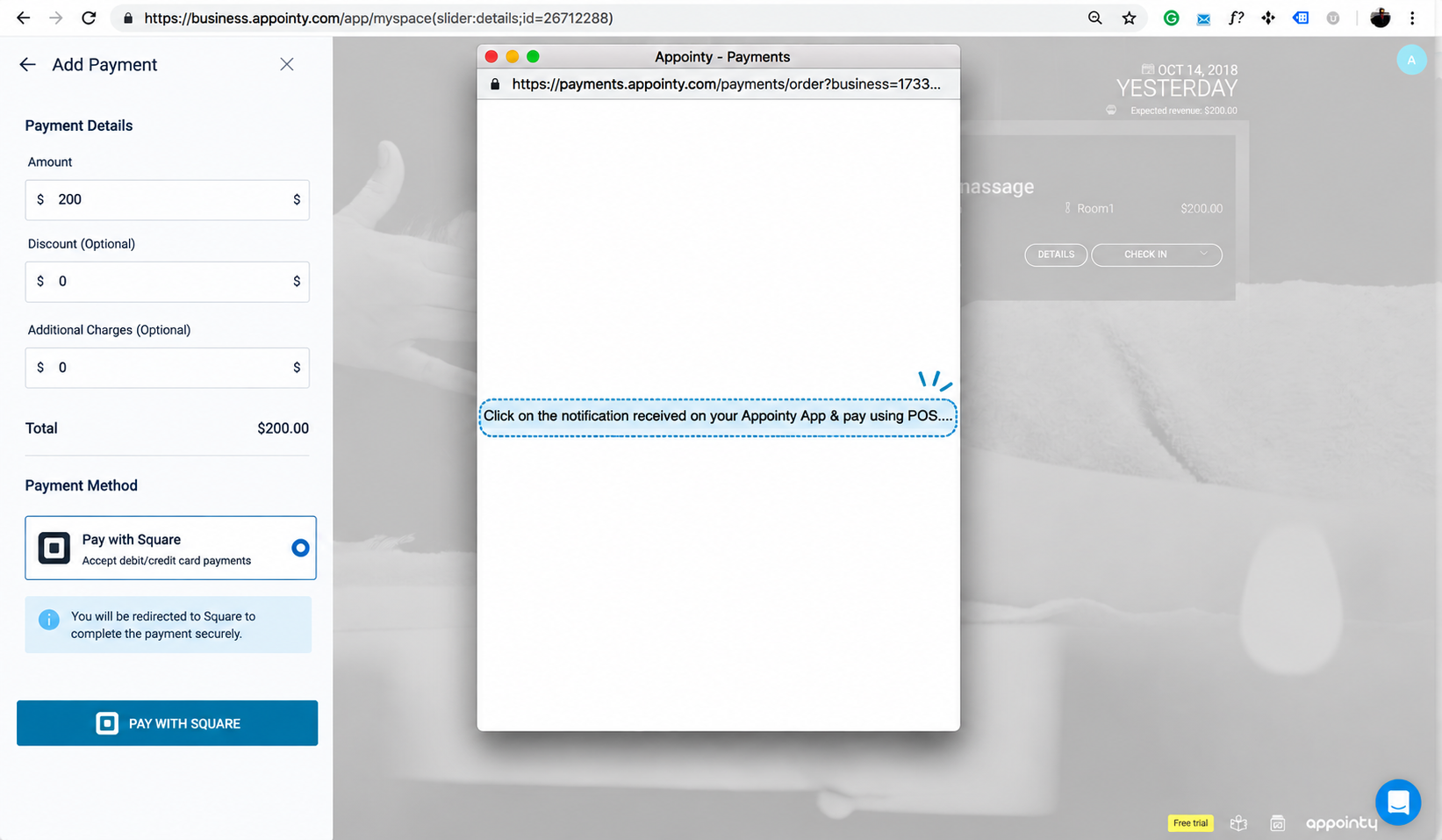
After you click Pay with Square, a payment request is sent to the Appointy mobile app.
Open the Appointy mobile app and accept the payment request.
Step 6: Complete the payment through Square POS
Once the request is accepted, process the customer's debit or credit card payment through Square POS.
After the payment is completed successfully:
- The payment is received through Square
- The payment is recorded against the appointment in Appointy
Example
Suppose a customer has a $120 appointment and wants to pay at your front desk.
You can:
- Open the appointment in Calendar
- Click Add Payment
- Enter $120
- Click Pay with Square
- Accept the payment request in the Appointy mobile app
- Complete the card payment through Square POS
The payment will then be recorded against that appointment in Appointy.
Frequently Asked Questions
Do I need to connect Square before using Square POS with Appointy?
Yes. Your Appointy account must first be integrated with Square.
Do I need the Appointy mobile app?
Yes. The payment request is sent to the Appointy mobile app, where it can be accepted before the POS payment is completed.
Where do I start the Square POS payment?
Open the appointment in Calendar, click Add Payment, enter the payment details, and select Pay with Square.
Can I add a discount before processing the payment?
Yes. You can enter the applicable payment details, including discounts and additional charges, before sending the payment request to Square.
Is the Square POS payment recorded against the appointment?
Yes. Once the payment is successfully completed, it is recorded against the appointment in Appointy.
Can I use Square POS without connecting Square to Appointy?
No. The Square integration must be set up first.